
How to Upload Your Project to Netlify
This article is a complementary resource to the JavaScript in Browser course.
This article is a complementary resource to the JavaScript in Browser course.
Most developers deploy their projects on version control systems like Git. But this can be a tricky task for beginners.
Fortunately, Netlify allows you to deploy your website without any knowledge of Git. All you need to do is to upload your project folder to the platform.
In this article, you will learn how to deploy your website on Netlify with the following steps:
Before uploading your project to Netlify, ensure the following:

Visit Netlify's website and log in, or create a free account if you don't already have one.
Creating a Netlify Account (Without Git Account)
i. Go to the Netlify website and click on the Sign Up button.
ii. In the signup page, click the "Sign up with email" link.

iii. Enter your email address and create a password for your Netlify account.

iv. Netlify will now send an email to your email id. Login to your email account to view the email and click the Verify email button.
v. Once you've verified your email, you're ready to upload your project through the drag-and-drop interface!
Case I: If you're logging in for the first time.
If you just created your account and are logging in for the first time, you'll be taken to the Drag & drop page automatically.

Case II: If you've already logged in before.
In this case, you'll need to go to the Sites section of your dashboard.

Scroll down on the Sites page until you see the drag-and-drop upload area.

Now, drag your prepared project folder (or its build/output folder) onto the drop zone.
Alternatively, you can click the "browse to upload" link if you don't like dragging and dropping.
Once you upload, Netlify will automatically deploy your files. This process usually takes only a few moments.
Once the deployment is complete, Netlify will generate a unique URL for your site. Take a look at the screenshot of the Sites page below:

Here, the project name is lambent-cannoli-04469a. Therefore, the URL of the website will be:
https://lambent-cannoli-04469a.netlify.app/
You can access this URL immediately to view your live website.
You can change your site URL if you don't like the one generated by Netlify. To do this,
i. Click on your site project on the dashboard (refer to the previous screenshot).
ii. Then, go to the Site Configuration page.

iii. Scroll down the Site Configuration page until you find the Change site name button.
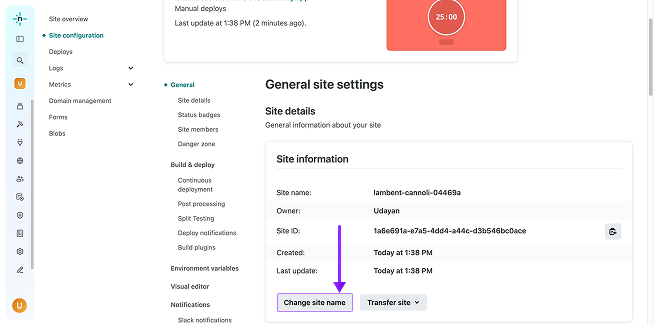
iv. You can now change your website to a valid URL.
We'll change our project name to pomodoro-programiz and click Save.

Thus, our project URL will be:
https://pomodoro-programiz.netlify.app/
Note: Since many users worldwide use Netlify, the URL you choose may already be taken by others. So make sure your URL is unique.